If your phone keeps freezing in the middle of a game, you’re not alone — and no, it doesn’t automatically mean your phone is “dead” or useless now.
At Fix Gadget Explorer Pro, we see this issue all the time. Most phones freeze during gaming for very simple reasons: heat, memory pressure, storage problems, or settings that are too heavy for the hardware.
The mistake most people make is restarting the phone and hoping the problem magically disappears. It won’t. You need to fix the actual cause.
Let’s go through this properly, step by step, the same way I would explain it to someone sitting next to me.
Why phones freeze during games
A phone freezes when it gets overloaded. During gaming, everything is working at once — CPU, GPU, RAM, battery, and internet. If one of them hits a limit, the phone protects itself by slowing down or freezing.
In real use, these are the main causes:
- Phone overheating
- Too many apps running
- Low free storage
- Game graphics set too high
- Weak battery or power limits
- Buggy game files
- Network instability
Now let’s fix each one the right way.
1. Overheating is the most common reason
This is the biggest cause of freezing during gaming.
When your phone heats up too much, it automatically reduces performance. If the heat continues, the game will freeze or stop responding.
You’ll usually notice:
- The back of the phone feels hot
- Freezing starts after 10–20 minutes
- The game slows down before fully freezing
What actually helps
- Remove the phone cover while gaming
- Never play games while charging
- Avoid gaming in hot rooms or sunlight
- Take short breaks during long sessions
If your phone freezes faster while charging, heat is definitely the problem.
2. Background apps quietly killing performance
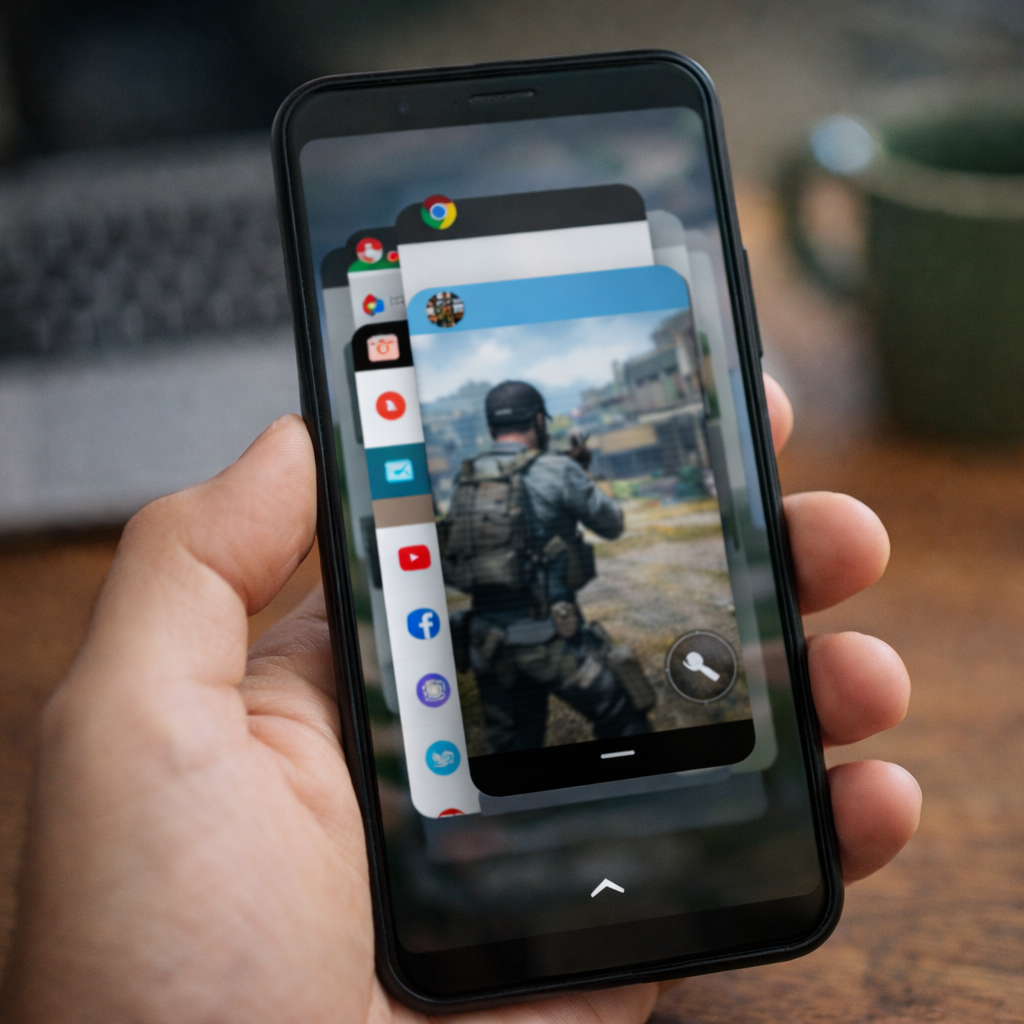
Games need free RAM. If messaging apps, social media, browsers, or video apps are open, they steal memory in the background.
This is especially bad on phones with 4GB RAM or less.
Fix this properly
- Open recent apps
- Close everything before opening the game
- Restart your phone once a day if you game often
This simple step fixes freezing for many users.
3. Graphics settings are too high for your phone
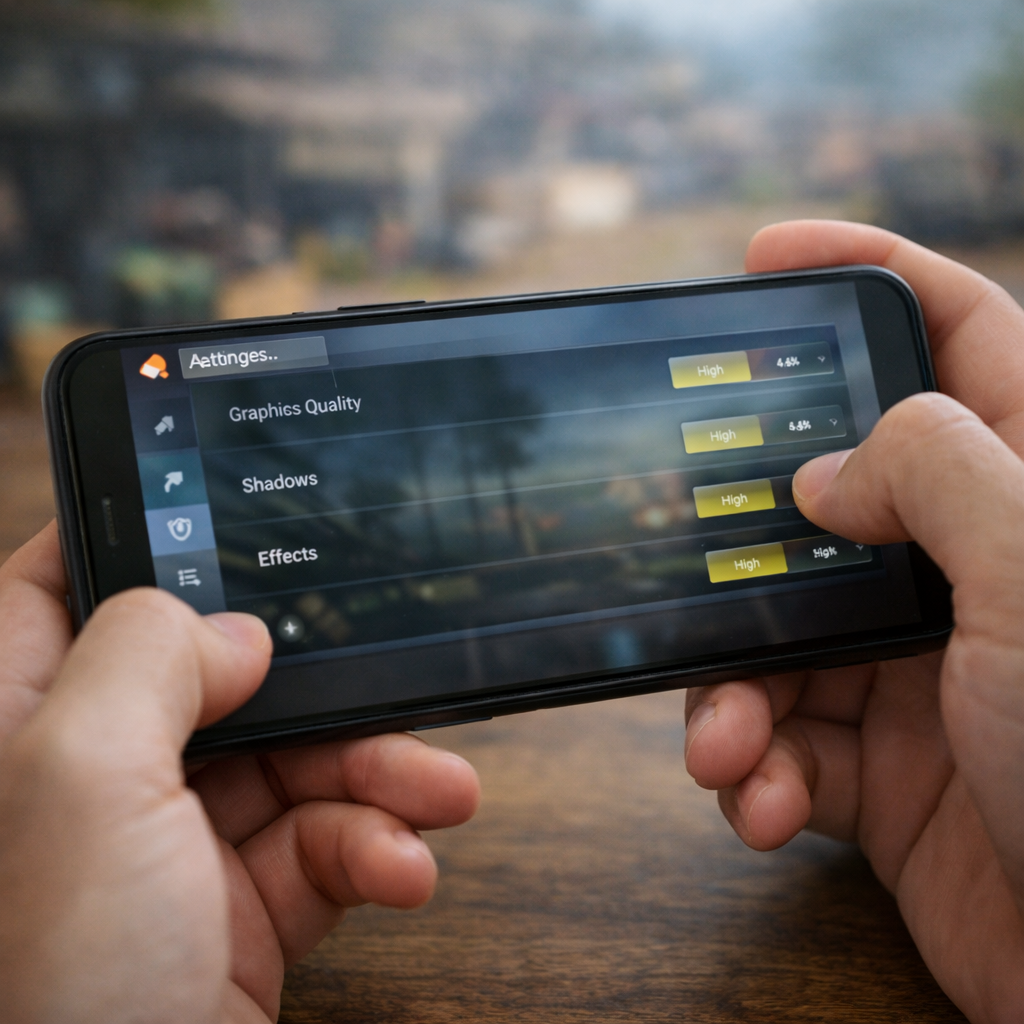
Many games automatically increase graphics after updates, even if your phone can’t handle it.
High graphics look good — until the game freezes.
What to change
- Open the game’s settings
- Set graphics to Medium
- Reduce shadows and effects
- Use a stable frame rate, not maximum
Smooth gameplay always beats high visuals that freeze.
4. Low storage causes real performance issues
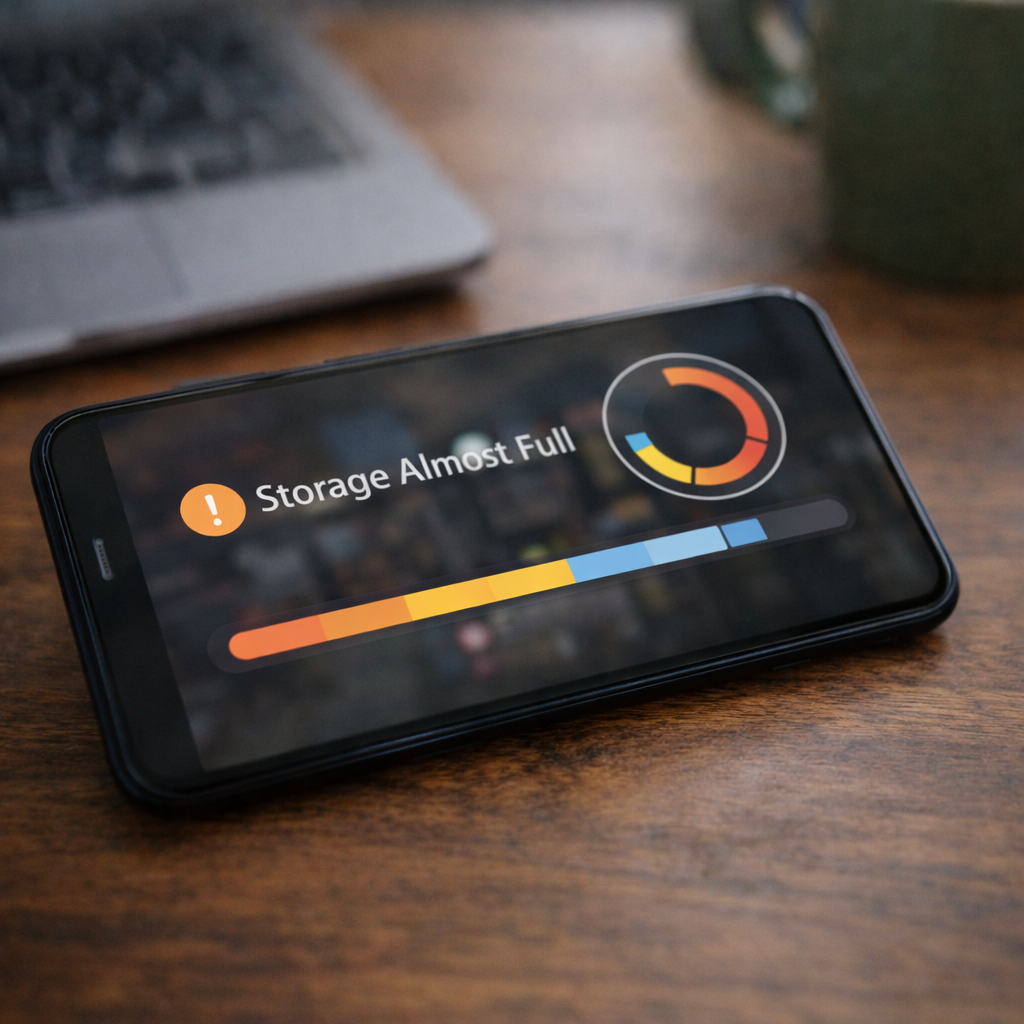
This one is ignored by most users.
When your phone storage is almost full, Android struggles to manage temporary files. Games rely heavily on cache, and without space, freezing happens.
Check your storage
- Go to Settings → Storage
- If free space is below 15%, that’s a problem
What to do
- Delete unused apps
- Remove old videos, screenshots, and downloads
- Clear app caches
Free space directly improves performance.
5. Corrupted game cache
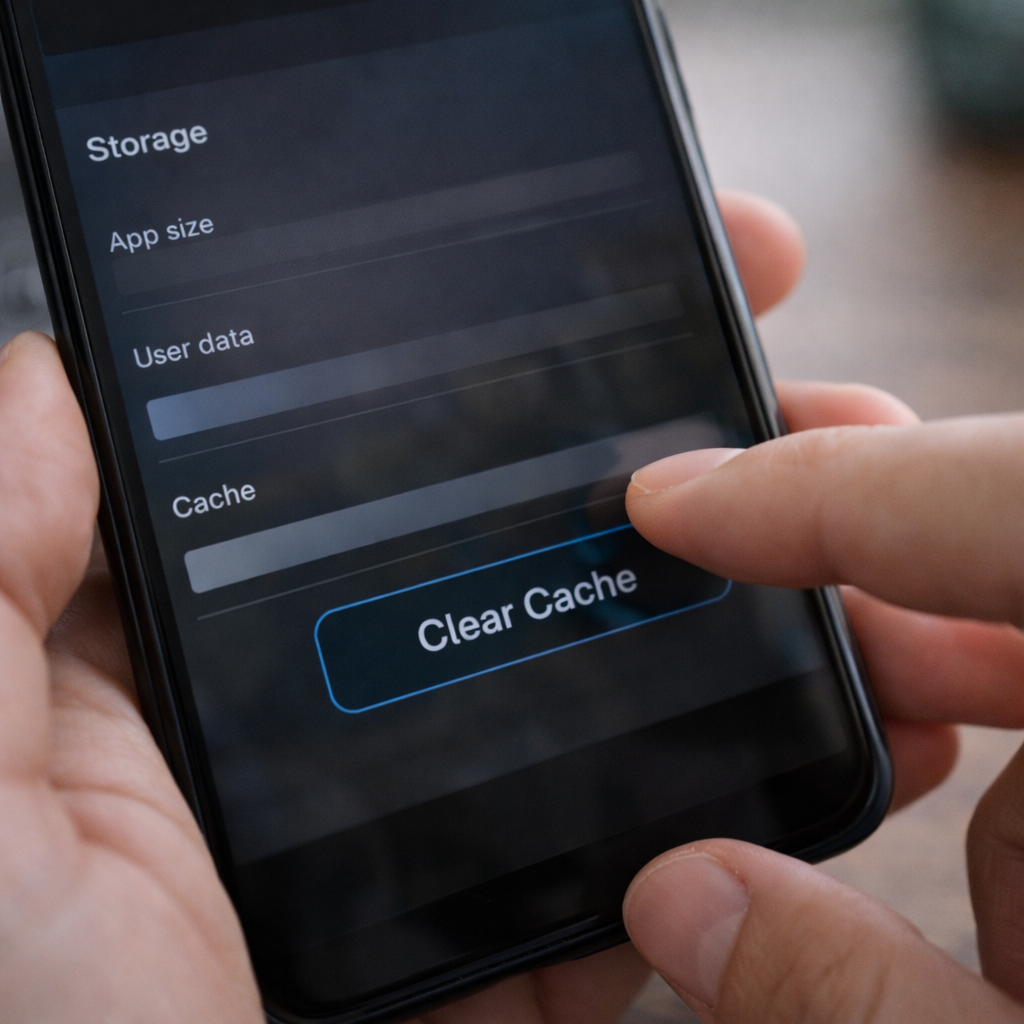
After updates, game cache files can break. This causes random freezes, stutters, or crashes.
Safe fix
- Settings → Apps → Your Game
- Storage → Clear Cache
Do not clear data unless your game progress is backed up.
6. Outdated game or phone software
Game developers fix bugs regularly. If you’re running an old version, you’re dealing with known issues.
Always check
- Update the game from Play Store
- Install system updates if available
Many freezing problems disappear after updates.
7. Battery health and performance limits
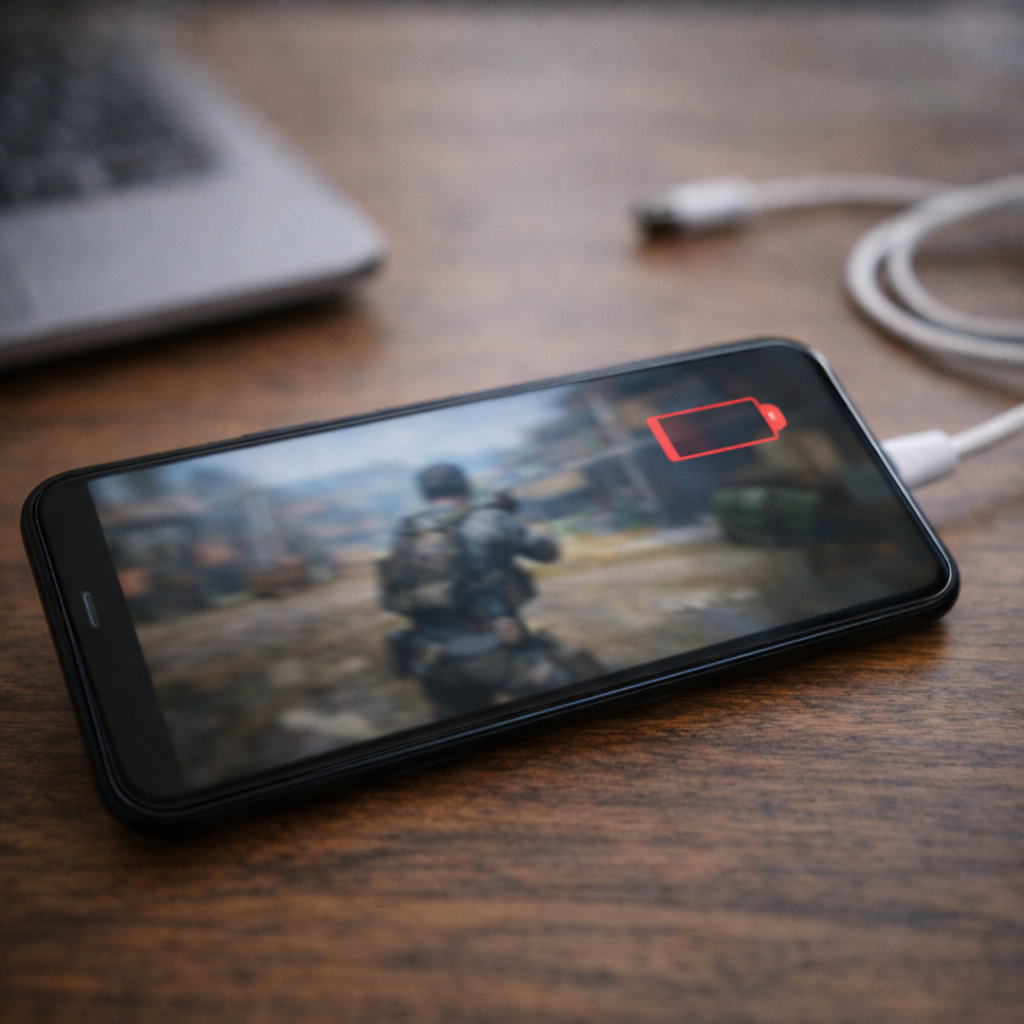
Older batteries can’t deliver enough power during heavy gaming. The phone limits performance to protect itself.
Signs
- Phone slows down below 30% battery
- Performance drops suddenly mid-game
Fix
- Keep battery above 30% while gaming
- Turn off battery saver mode
- If the battery is very old, replacement helps more than any app
8. Internet problems that look like freezing
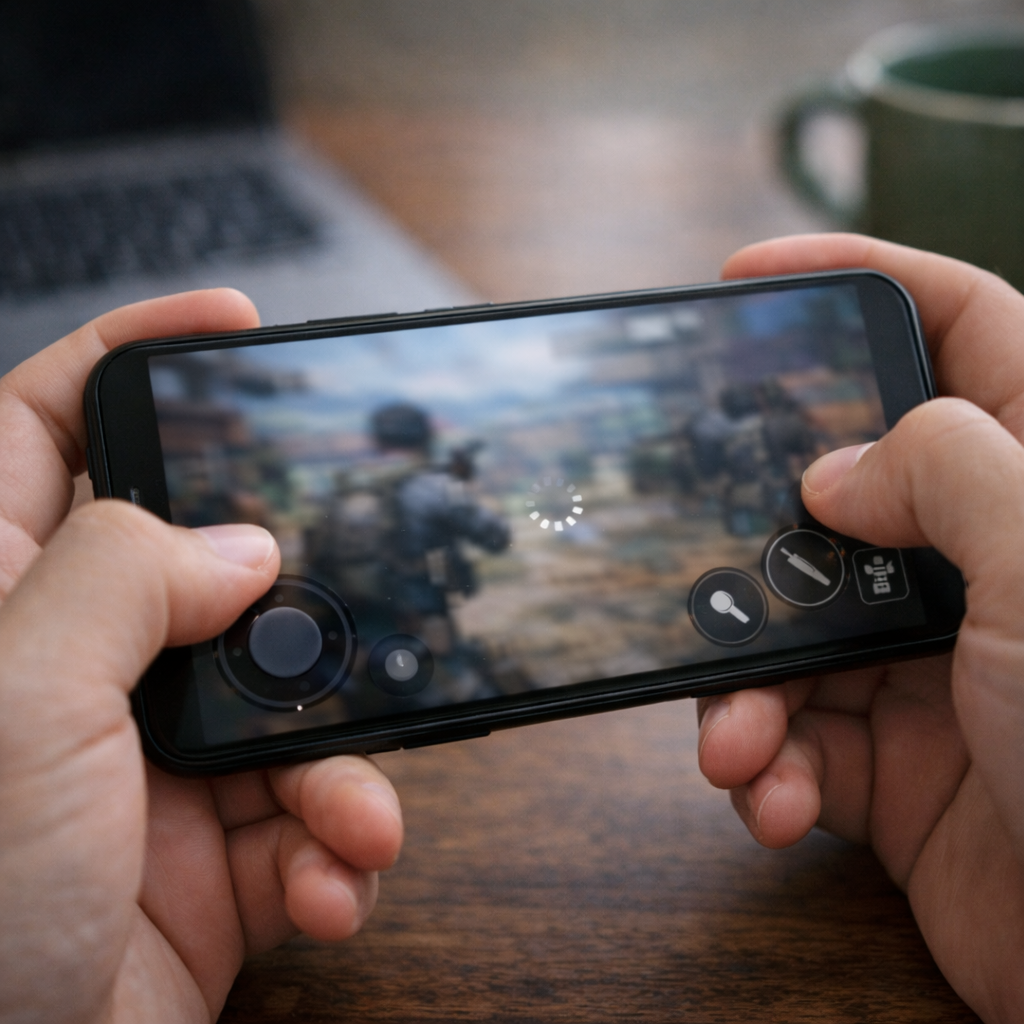
In online games, weak or unstable internet can make the game appear frozen.
Try this
- Switch between Wi-Fi and mobile data
- Avoid weak signal areas
- Turn airplane mode on for 10 seconds, then off
If freezing only happens in online matches, the network is likely the issue.
9. Last option: reinstall the game
If you’ve tried everything and the game still freezes:
- Back up your game progress
- Uninstall the game
- Restart your phone
- Reinstall the game fresh
This removes hidden bugs and broken files.
What we don’t recommend at Fix Gadget Explorer Pro
- RAM booster apps
- Fake performance apps
- Unsafe tweaks or overclocking
These usually make things worse, not better.
Final thoughts from Fix Gadget Explorer Pro
A phone that freezes during gaming isn’t broken — it’s overloaded.
Once you control heat, memory, storage, and power, most phones become playable again without spending money.
If freezing continues even after all these steps, the phone has reached its hardware limit. At that point, lowering game settings or upgrading is the honest answer.
Want more fixes like this?
Fix Gadget Explorer Pro publishes real-world phone solutions, written clearly, tested properly, and explained without confusion.
About the Author